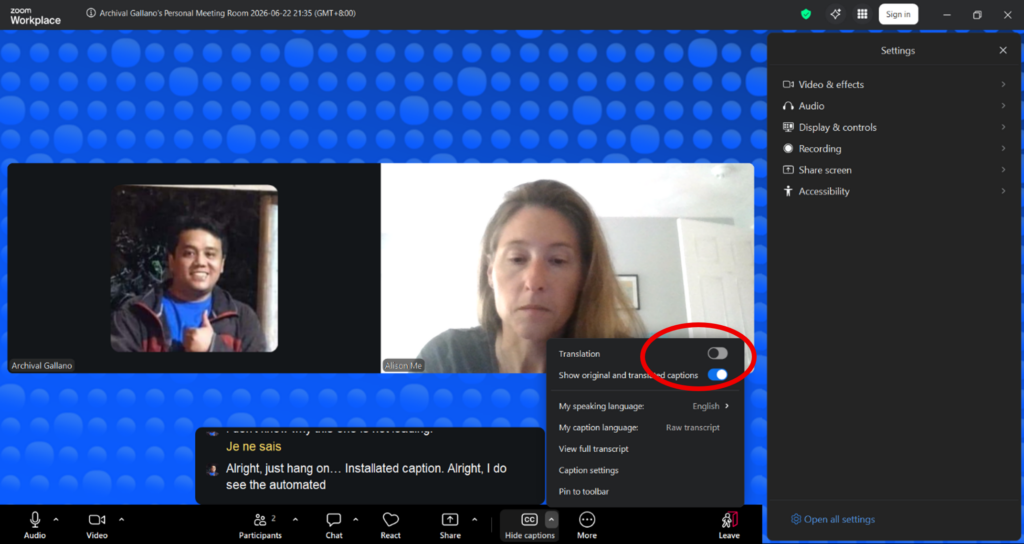
In order to show captions in a language that is not English you will need to do the following:
- Captions and select Show Captions (you may need to select More first to find Show Captions)
- Then select the ^ character
- This will bring up a new window where you will need to toggle Translation to the right
- When you toggle that to the right you should get the option to enable translation in the language you desire
- Hit save and you should now see yellow translated captions under English (as the meeting will be run in English) and the yellow text will be the translated text in the language you have selected
The screenshot below shows when you select the ^ character you will get that new small popup – sliding the button to the right next to Translation will then let you select the language you want the meeting or webinar translated.